
Google Analytics conversion tracking is the practice of marking the events that matter in a GA4 property and using them to measure the actions you care about. In GA4 the events you flag are called key events. A conversion is the campaign action built from a key event or an event, and in Google Ads it only feeds bidding when it is a primary conversion included in a campaign goal. The older GA4 called key events conversions, which is why the two terms still blur, but they are not interchangeable today.
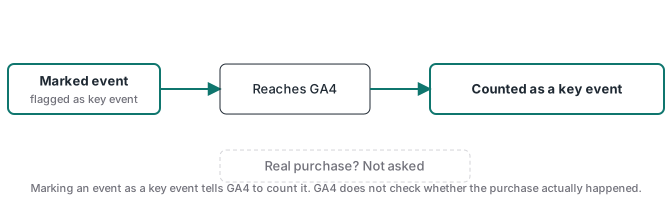
One limit matters from the start. GA4 counts a key event when the marked event arrives, and it does not confirm that the action behind it was real, unique, or completed. That comes up once more, in the section on what GA4 cannot verify, and the rest of the guide is the practical setup most people searching this topic are after.
This guide covers what a key event is, how to implement one with current examples for a lead and a purchase, how GA4 and Google Ads tracking differ, where to read the results, and the one thing GA4 cannot verify. I implement this tracking for clients, and I built Advanced Tracking Academy around the containers I use in production. The wider measurement picture sits in the server-side tracking guide.
What a key event is in GA4
A key event is an event you have marked as important. GA4 is event-based, unlike the older Universal Analytics property, which organized measurement around sessions and goals. In GA4 a page view, a click, a form submission, and a purchase are all events.
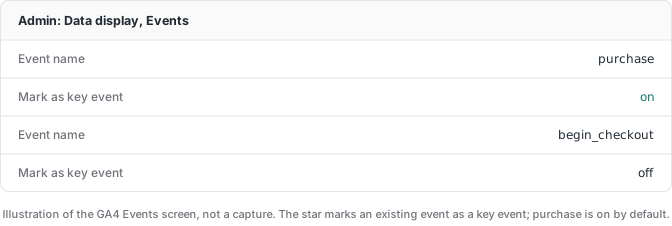
Not every key event starts unmarked. Some events are marked as key events already, and the purchase event is on by default. Depending on your property settings, other events may be marked too. So the first move is to check which events already carry the key-event mark before you change anything.
GA4 collects events through its base installation (page views and enhanced measurement events such as scroll, outbound click, and site search), through custom code or Google Tag Manager, and through the Measurement Protocol from a server. Any event that reaches GA4 is eligible to be a key event.
How to set up conversion tracking in GA4
Marking is the heart of it, but you still have to send the event from the right moment. These steps use the current interface and cover a lead and a purchase.
-
Send the event from the result, not from the click. For a purchase, fire
purchaseon the order confirmation withvalue,currency, and a uniquetransaction_id. In gtag that looks like:gtag('event', 'purchase', { transaction_id: 'order_1234', value: 49.00, currency: 'USD', items: [{ item_id: 'container_pack', item_name: 'Container Pack', price: 49.00, quantity: 1 }] });valueandcurrencygive the key event revenue. A uniquetransaction_idlets GA4 deduplicate purchases on web streams. For a lead, the simplest pattern is a thank-you page: if your form redirects to a thank-you URL, fire the lead event on that page load through a GTM trigger. That is easy to set up, but it fires on every load, so it double-counts if the visitor reloads. The cleaner pattern is to push the event from your form’s success callback, so it only fires when the backend accepted the submission:dataLayer.push({ event: 'generate_lead', value: 5.00, currency: 'USD' });In Google Tag Manager you then add a Custom Event trigger on
generate_leadand a GA4 event tag that sends it. Confirm whichever event you use in DebugView and the Realtime report before you mark it. -
Mark the event as a key event. In Admin, under Data display, open Events and select the star, Mark as key event, next to the existing event. If the event should only count under certain conditions, create a custom event with those conditions first, then mark the custom event. You can also create a new event already marked.
-
Choose the counting method. Each key event counts either Once per event, which counts every time the event fires, or Once per session, which counts it once per session. A purchase usually uses Once per event. A repeatable lead sometimes uses Once per session. Key events migrated from old Universal Analytics goals may default to Once per session, so check rather than assume.
-
Validate and let the report settle. The Realtime key events card reflects the event after a short processing delay, usually a few minutes, and applying a new key-event configuration can itself take from minutes to a few hours. To read the settled results, open Reports, then Engagement, then Conversions (or Key events). There you see the key-event count plus the Session key event rate and the User key event rate, which are the conversion-rate metrics in GA4.
GA4 key events versus Google Ads conversions
The two systems measure related but different things, and the gap between them is normal rather than a sign of broken tracking.
GA4 key events are counted for analysis, and they include all your traffic. Google Ads conversions are counted for bidding, and they are tied to an eligible ad interaction, such as a click or an engaged view, according to the conversion source and the attribution model. Google Ads can also count view-through conversions, where a person saw an ad but did not click it before converting. The same purchase can appear as one key event in GA4 and as zero, one, or a different number of conversions in Google Ads.
| GA4 key events | Google Ads conversions | |
|---|---|---|
| What it measures | Marked events across all your traffic | Actions attributed to an eligible ad interaction or impression |
| Counted for | Analytics and reporting | Ad bidding and optimization |
| Counting | Once per event or once per session | Every conversion, or one per ad interaction |
| Attribution | GA4 data-driven or model attribution | Google Ads attribution model and window |
| Includes non-ad traffic | Yes | No |
| Can include view-through | No | Yes, depending on the source |
Google Ads only counts a conversion when it can attribute the action to one of your ads, and it applies its own counting setting and attribution window on top. A campaign that looks thin on conversions in Google Ads can still show plenty of key events in GA4 from organic and direct traffic that never touched an ad. The Google Ads offline conversion tracking guide covers the other half of that pipeline, where conversions that happen off the website are uploaded and attributed to an ad interaction.
Bringing key events into Google Ads
Two prerequisites come before the import, and skipping either can break attribution even with a correct setup. Turn on auto-tagging in Google Ads so the ad click identifier reaches your site with each click, and make sure that identifier survives any redirects between your landing page and your conversion page. With those in place, link your GA4 property to Google Ads and import the key event as a conversion, or create the conversion from GA4’s conversion management for linked accounts.
The counting setting is a Google Ads knob, separate from the GA4 counting method. Google Ads counts either Every conversion after an ad interaction or only One per interaction. That is one reason the same imported key event can show a different number in the two systems.
Importing a key event does not by itself make Google Ads optimize for it. An import can land as a secondary action, especially to avoid double-counting with goals that already use that Analytics property. Only a primary conversion included in a campaign goal enters the Conversions column and feeds bidding; a secondary action stays in the All conversions view and does not. So after you import, check Action optimization, promote the action to primary if you want to bid on it, and add it to the relevant goal.
Why some events never reach GA4
A real share of events never make it from the browser into GA4, and the loss is not random. Ad blockers and privacy extensions filter requests to known measurement domains. Safari’s tracking prevention caps how long client-side cookies persist, which weakens the ability to recognize a returning visitor across sessions. Checkouts that hand off to a third-party domain, such as a hosted payment page, can also break the tag’s view of the purchase.
Consent adds a separate layer, and how it behaves depends on your Consent Mode setup. In Basic mode, when a visitor declines and analytics_storage is denied, the analytics tags do not send measurement data for that visitor. In Advanced mode the tags still fire and send cookieless pings carrying page activity and events, just without the analytics cookie, and GA4 can model the rest. Denying storage is not the same as blocking all transmission in Advanced mode, and separate controls exist to stop analytics data from being sent. The Consent Mode v2 guide covers the two modes and the modeling in detail.
For sites where that browser loss is large, sending the event from your own server through the Measurement Protocol can add resilience when consent was given. It does not override a declined consent choice, and in a setup that sends everything server-to-server GA4 may only fill partial reports, because session recognition and attribution still rely on a client identifier and a session identifier reaching the property with the right timing. Hosting that server-side container is where a managed host helps: it runs the server and automates certificate and scaling, though you still configure your own subdomain and DNS. The server-side GTM guide covers the architecture.
What GA4 conversion tracking cannot verify
GA4 counts a key event when the marked event arrives. A duplicate event, a test event, automated traffic, or a payment that fired the purchase tag and then failed can all land as key events, because GA4 measured the event it received rather than the business outcome behind it. A unique Transaction ID collapses duplicate purchases on web streams, but it does not confirm the charge settled. Shopify adds a specific ownership trap when the Google & YouTube integration and a custom GTM route both send ecommerce events. The Shopify sGTM duplicate-events guide covers that audit without sacrificing the Merchant Center feed.
Closing that gap depends on your setup. A well-implemented client-side configuration is enough for many sites: correct events, the right counting method, auto-tagging, and clean attribution. When the result itself needs to be validated, the source of the event should be the system that knows the outcome. A payment provider confirms a successful charge through a webhook, and your CRM records whether a lead qualified. Sending the key event from that confirmation is what makes the number trustworthy, and the Stripe conversion tracking guide walks through purchase tracking built on the payment webhook. A server-side container is the layer where you normalize, filter, and forward those events to GA4 and to other platforms from one place; it does not know the outcome on its own, and it does not replace the backend integration that does.
So the recommendation scales with the problem. Start with correct key events and counting for every property. Add a backend source on the real outcome when the conversion has to be exact, such as a purchase or a qualified lead. Add a server-side path when browser loss, scale, governance, or multi-platform integration justify the added infrastructure. GA4 conversion tracking is the counting layer; what sits behind it decides whether the count is worth counting.