
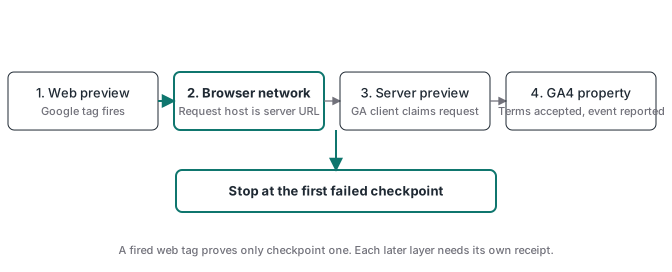
When a web GTM tag fires but the server container is empty, the trigger is only the first receipt. It proves that the web container ran a tag. It does not prove where the browser sent the request, whether an sGTM client claimed it, or whether GA4 accepted and reported it.
The fastest fix is to debug those layers in order. Check the Google tag routing first, then search for a second hard-coded gtag using the same G- ID. After that, verify the request host in the browser, the claiming client in server Preview, and the GA4 property terms. This order came out of a real nine-hour community debug where several individually plausible checks kept pointing at the wrong layer.
Those are separate claims. Advanced Tracking Academy uses this same receipt-by-receipt method when validating a server-side GTM setup.
Why does the web tag fire while the server container stays empty?
A web tag can fire perfectly and still send its request somewhere other than your server container. Web Preview reports container execution: the trigger matched, variables resolved, and the tag ran. That’s all. The first useful evidence is the outgoing request in the browser Network panel, where you can trigger one test event, open its request, and read the host that actually received it. If it goes directly to a Google collection domain, the routing problem is still in the page or web container. If it goes to your first-party tagging hostname, the transport worked and the next question is whether a server client claimed the request. Treat those as two checkpoints. Otherwise, a green web Preview badge can keep you editing server tags that never received anything.
The same separation applies to your reports. A request can reach sGTM, get claimed, and still fail later at the outbound tag or destination. One screen cannot prove the whole chain.
Where should the server route go, the Google tag or the GA4 Event tag?
Put the route in the Google tag’s Configuration settings. Google’s current setup guide names the parameter server_container_url and says its value should be the URL of your Tag Manager server container. Google also says configuration-level parameters affect Google tag behavior and can only be set at the Google tag level. A GA4 Event tag is downstream of that configuration. It supplies the event name and event-level parameters, so it is the wrong place to establish the shared transport for the stream. If you add a server address only to a single event tag or a variable that the base Google tag never reads, web Preview may still show that event tag as fired while page views and other events follow the direct route.
In a current native GTM setup, use the documented field:
Google tag
Configuration settings
Name: server_container_url
Value: https://data.example.com
Fire the Google tag on Initialization or another trigger that runs before the event tags which depend on it. Then test the network request instead of assuming the setting propagated.
What happened to transport_url?
You will still find transport_url in old tutorials, variables, community answers, and some non-native tag templates. It points at the same practical question: which endpoint should receive the browser request? The current Google documentation for the native Google tag and gtag.js uses server_container_url. That is the name to follow for a present-day native setup. Do not swap parameter names by memory. Open the exact tag template you are using and check which field it consumes. A custom or partner template can keep its own naming even when the Google tag has moved on.
The placement rule is more durable than the label. The route belongs in the configuration layer that initializes the Google destination instead of a single GA4 Event tag. Once it is there, prove the result by inspecting the request host. That one check resolves the terminology argument without guessing which blog post was written for which interface version.
Can a hard-coded gtag hijack the same G ID?
Yes. A hard-coded Google tag, a CMS integration, or a plugin can configure the same G- ID outside GTM. Google’s own troubleshooting guidance says to use either the Google tag snippet or Tag Manager, and warns that using both can overcount. Google also documents that configuring the same Google tag more than once on a page can produce duplicate data or mixed settings. In an sGTM migration, the extra snippet can create the more confusing version: some events use the server route while another configuration sends directly to Google. The symptom looks random until you group requests by initiator and hostname.
Search more than the visible page template. Check rendered source, theme settings, consent-management integrations, analytics plugins, checkout scripts, injected header code, and tag-management features built into the CMS. In Developer Tools, the Initiator column often exposes the file or script that created the request. Remove or disable the duplicate only after you identify which implementation owns consent and every required destination. On Shopify, the extra owner may be the Google & YouTube app rather than theme code. The Shopify duplicate-events audit shows how to separate GA4 tracking from the Merchant Center feed before removing anything.
How do you prove the browser request reached sGTM?
Open Developer Tools before you trigger the event, filter Network for collect, the event name, or your tagging hostname, clear the list, perform one action, and inspect the fresh request. Save it. Record the Request URL and host along with the status, payload, initiator, and time so the next person can reproduce what you saw. The host must be the server container URL you configured. A healthy /healthz response only proves the service is up; it says nothing about the event request. A successful request to a Google collection domain proves direct delivery. It gives you no evidence of server delivery. If no request appears, return to the web trigger, consent state, browser errors, and Content Security Policy.
Google’s server-side guide lists img-src, connect-src, and frame-src allowances for the tagging server because the Google tag may use several transport methods. A restrictive policy can block one of those paths. Keep the console open while testing. The exact browser error is more useful than changing several tags at once.
Why is server Preview still empty after the host is correct?
Start Preview from the server container, leave the debugger open, reload the website in another tab, and trigger the event while both windows remain visible. Watch what arrives. Unlike web Preview, the server debugger does not ask for a website URL because it waits for requests arriving at the tagging server. When the request appears, inspect which client claimed it and which event the client created. Google’s server container ships with a Google Analytics client, but client priority and activation criteria still matter. The first matching client claims the request. A request on the wrong path, an incompatible payload, a disabled client, or a higher-priority custom client can leave your expected GA client with nothing.
If the Network panel shows the correct host and server Preview shows no incoming request at all, verify that the request belongs to the active preview session. If Preview shows a request but no event, inspect client claiming. If an event exists but the server tag does not fire, move to its trigger and variables. Three different failures, three different repairs.
Can unaccepted GA4 terms make Analytics look empty?
Yes, but this is a destination check. Google states that data can flow from a Google tag to a Google Analytics account only after the Analytics Terms of Service are accepted. That does not explain an empty server Preview, which sits earlier in the chain. It can explain why sGTM receives and processes an event while the GA4 property still shows no data. Use an account with the required permissions, open the Analytics property, and confirm the account terms were accepted. Then check the correct property, web stream, measurement ID, Realtime report, and processing delay.
Do not confuse this with the separate user-data collection acknowledgment used for advertising audiences and user-provided data. Those controls have different effects. This article’s check is the Analytics Terms of Service required for the destination to receive Google tag data. If GA4 receives the event but the number later becomes a key event or an Ads conversion issue, the GA4 conversion tracking guide continues from that layer.
What is the complete sGTM debug ladder?
The ladder below goes from the earliest observable fact to the final report. Run one test event with a unique value where possible, keep the time visible, and save one receipt at each step. Stop as soon as a checkpoint fails. Fix that layer, publish the relevant container or code change, and repeat from the top. This keeps a routing defect from turning into hours of edits to server tags or GA4 settings.
| Checkpoint | Evidence to capture | If it fails |
|---|---|---|
| Web execution | Google tag and event tag in web Preview | Fix trigger, consent, variables, or runtime error |
| Browser transport | Request host equals your server container URL | Fix server_container_url, duplicate code, CSP, or hostname |
| Server receipt | Incoming request visible in server Preview | Reconnect Preview, verify URL, path, deployment, and request |
| Client claim | Expected client claims request and creates event | Fix client activation, priority, path, or payload format |
| Server tag | Outbound GA4 tag fires with the intended measurement ID | Fix trigger, variables, permissions, or tag configuration |
| GA4 acceptance | Terms accepted and the property can receive tag data | Accept terms with an authorized account and verify the property |
| Destination report | Test appears in Realtime or DebugView after processing | Check stream ID, filters, consent, payload, and processing delay |
The method is intentionally boring. Change one thing per pass and keep the previous known-good receipt. If two requests share the same G- ID, label their initiators before deleting either one. Record the container version. That small log is what lets another implementer reproduce a change in server Preview after a publish.
For a durable receipt after Preview closes, the sGTM event database guide shows how to log selected events in Postgres, count writes by event ID, and keep a duplicate row from masking an upstream duplicate source.
How do you keep this from becoming another nine-hour debug?
Keep it simple. Make the request route part of your deployment checklist, with one named owner for each G- ID, one recorded server hostname, and one screenshot or request export proving the browser used it. Publish web and server container versions with matching notes. Run a control page view and one business event, then save the browser request, server claim, outbound request, and destination receipt. The next incident starts from four facts instead of memory.
A managed first-party host such as Stape can simplify the custom-domain and container-hosting layer. It cannot choose the correct Google tag, remove a hard-coded duplicate, accept GA4 terms, or prove your event definition. Stape is an ATA partner used in professional implementations, and code MRPV20 gives 20% off the first three months.
If you want the whole structure ready to inspect, Advanced Tracking Academy’s containers include the web and server pieces, webhook validation, and the test sequence used in client work. The useful deliverable is the evidence chain: browser request, server claim, outbound request, and destination receipt for the same event.